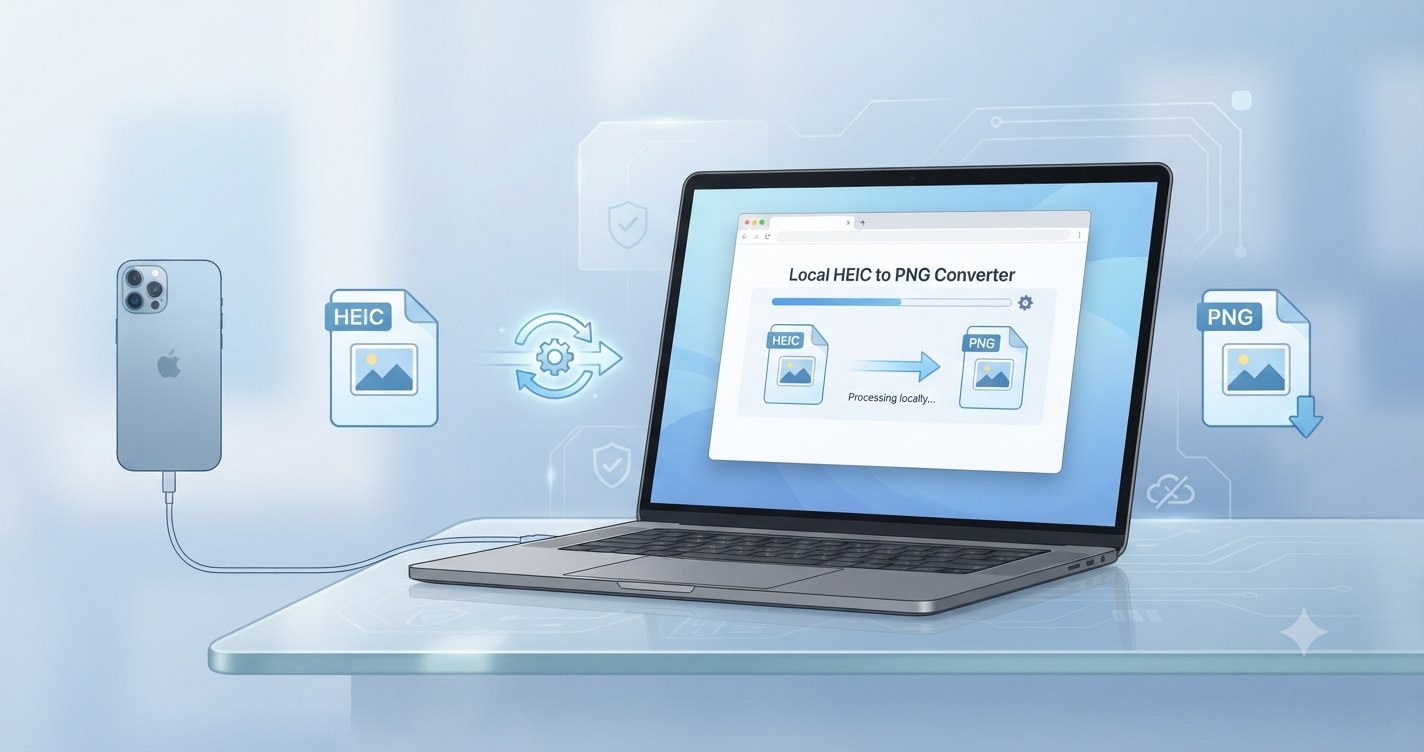
HEIC photos are common on modern iPhones, but they are not always convenient to open, edit, upload, or share on a Windows computer. Some websites, document systems, image editors, and older applications may reject HEIC files even when the photo itself is completely valid.
The simplest solution is to convert the image into PNG, a widely supported format that works with most browsers, office applications, design tools, websites, and Windows programs. You can use the free HEIC to PNG Converter on ToolkitCenter to complete the conversion directly in your browser without installing desktop software.
This guide explains what HEIC files are, why Windows users sometimes experience compatibility problems, how to convert HEIC to PNG step by step, and what to do if a file does not convert correctly.
Quick Answer: How to Convert HEIC to PNG on Windows
- Open the ToolkitCenter HEIC to PNG Converter.
- Select the HEIC or HEIF photo from your Windows computer.
- Wait for the image to be processed in your browser.
- Preview the converted PNG image.
- Download the PNG file to your computer.
No separate image editor or desktop conversion application is required. The process is useful when you need an iPhone photo in a format that is easier to open, edit, print, upload, or include in a document.
Convert a HEIC image to PNG online
What Is a HEIC File?
HEIC is a filename extension commonly associated with the High Efficiency Image File Format, also known as HEIF. Apple devices use this modern format for many photos because it can store high-quality images efficiently while using less storage space than some older image formats.
When an iPhone camera is configured to use the High Efficiency setting, photos may be saved with a .heic extension instead of the more familiar .jpg extension.
HEIC is useful for saving storage space on phones, but compatibility can vary between operating systems, browsers, upload forms, editing programs, and older devices. A photo may display correctly on an iPhone or Mac while producing an unsupported file message on another computer.
Apple provides additional information about the format in its official guide to using HEIF and HEVC media on Apple devices.
Why Can HEIC Photos Be Difficult to Open on Windows?
Recent versions of Windows can support HEIC images, but the required image extensions or codecs may not always be installed. Compatibility can also depend on the Windows version, the application being used, and how the image was transferred from the iPhone.
Common HEIC problems on Windows include:
- The Photos application displays an unsupported file message.
- An editing program cannot import the image.
- A website accepts JPG and PNG files but rejects HEIC.
- A document or job application portal does not recognize the format.
- An email recipient cannot open the attached image.
- A thumbnail or preview does not appear in File Explorer.
- A printing or office application requires a more common format.
Microsoft explains that HEIF image extensions may be needed for some Windows applications to display these files. Installing the extension is one possible solution, but conversion is often more convenient when you only need a universally compatible copy of a photo.
How to Convert HEIC to PNG on Windows Step by Step
Step 1: Find the HEIC image
Locate the photo on your Windows computer. HEIC files commonly arrive through an iPhone USB transfer, iCloud, OneDrive, email, messaging applications, or shared cloud storage.
You can confirm the format by checking the filename. A HEIC image normally ends with:
photo-name.heicSome files may use the related .heif extension.
Step 2: Open the ToolkitCenter converter
Visit the ToolkitCenter HEIC to PNG Converter Online in a modern browser.
The tool is designed specifically to convert HEIC and HEIF images into PNG files. It provides a preview of the converted image before downloading it.
Step 3: Select your HEIC or HEIF file
Select the upload area and choose the image from your computer. Use the original file when possible rather than a screenshot or previously compressed copy.
Before converting an important photo, keep the original HEIC file as a backup. Conversion creates a new PNG copy and should not be treated as a replacement for your original camera file.
Step 4: Wait for browser processing
The image is processed through the converter in your browser. The required time depends on the image dimensions, file size, device performance, and available browser memory.
A normal iPhone photo should usually process quickly, while very large images may require more time.
Step 5: Preview the converted PNG
Review the preview before downloading. Check that:
- The image displays correctly.
- The orientation is correct.
- The colors appear normal.
- The full photo is visible.
- No unexpected blank area has appeared.
Step 6: Download the PNG file
Select the download option and save the new PNG image to your computer. Consider placing the file in a clearly named folder so that it is not confused with the original HEIC version.
A useful filename might be:
summer-photo-converted.pngAfter downloading, open the PNG file with the Windows Photos application or another image viewer to verify the result.
When Should You Convert HEIC to PNG?
PNG is a practical choice when compatibility and image clarity are more important than achieving the smallest possible file size.
Converting HEIC to PNG can be useful for:
- Uploading an iPhone photo to a website that only accepts PNG or JPG.
- Adding images to Microsoft Word, PowerPoint, or other documents.
- Opening a photo in an application that does not support HEIC.
- Preparing screenshots, interface graphics, or reference images.
- Sharing a photo with someone using an older device.
- Adding an image to a blog post or website.
- Creating a compatible copy for printing.
- Using the image in a basic design or editing workflow.
PNG uses lossless image compression, which makes it suitable for graphics, screenshots, text-heavy images, and files that may be edited repeatedly. However, a PNG copy of a detailed camera photo may be significantly larger than the original HEIC file.
HEIC vs PNG: What Is the Difference?
| Feature | HEIC | PNG |
|---|---|---|
| Main purpose | Efficient photo storage | Wide compatibility and lossless graphics |
| Commonly used by | iPhone, iPad and Apple photo workflows | Browsers, websites, editors and office applications |
| File size | Usually more storage-efficient | Can be larger for detailed photographs |
| Windows compatibility | May require additional support | Widely supported |
| Transparency support | Format capabilities vary by image and software | Commonly supports transparent backgrounds |
| Best use | Keeping original mobile photos efficiently | Editing, uploading, graphics and compatibility |
Does Converting HEIC to PNG Improve Image Quality?
Converting a file does not add detail that was not present in the original image. The PNG file can preserve the visible result without applying normal lossy JPG compression, but it cannot repair blur, poor focus, low resolution, noise, or previous compression damage.
The primary reason to convert HEIC to PNG is compatibility, not automatic quality enhancement.
For best results:
- Use the original HEIC photo.
- Avoid converting the same image repeatedly between formats.
- Do not resize the image unless smaller dimensions are required.
- Keep the original HEIC file for archiving.
- Review the PNG result at full size before deleting any files.
Why Is the Converted PNG File Larger?
It is normal for a converted PNG image to be larger than the original HEIC photo. HEIC is designed for efficient photo storage, while PNG uses a different lossless compression method.
Large PNG files may take longer to upload and can consume more website storage or bandwidth. When the converted image is intended for a website, email attachment, or online form, you can reduce its size with the ToolkitCenter Online Image Compressor.
The compressor supports common image formats and allows you to adjust quality or image dimensions when a smaller file is required.
Should You Convert HEIC to PNG or JPG?
The best output format depends on how the image will be used.
Choose PNG when:
- The destination specifically requires PNG.
- You need a lossless working copy.
- The image contains text, interface elements, diagrams, or sharp edges.
- You plan to continue editing the file.
- Compatibility is more important than file size.
Choose JPG when:
- The image is a normal photograph.
- A smaller file is important.
- The file will be sent by email or uploaded to social media.
- The destination accepts JPG but not HEIC.
- Transparency is not required.
If you already have a PNG file but need a smaller and more shareable photographic format, use the PNG to JPG Converter Online.
Common HEIC Conversion Problems and Solutions
The HEIC file is not recognized
Confirm that the file actually ends in .heic or .heif. Renaming a JPG file to HEIC does not convert it and may make the file unreadable.
The image does not upload
The file may be damaged, incomplete, unusually large, or encoded in a way that the browser cannot process. Try opening the original image on the iPhone first and transfer it again.
The conversion takes too long
Close unnecessary browser tabs and try again. High-resolution photos require more memory than small images. A desktop computer may process large files more reliably than an older mobile device.
The converted image is rotated incorrectly
Some photos depend on orientation metadata. If the displayed orientation is incorrect, rotate the downloaded PNG with an image editor or an online rotation tool before using it.
The PNG file is too large
Run the converted image through the Online Image Compressor. You can also resize the image if the original dimensions are larger than the website, document, or upload form requires.
The downloaded image looks different
Display differences may be caused by color profiles, browser rendering, screen calibration, or metadata handling. Compare the result on more than one application before deciding that the conversion failed.
How to Make Your iPhone Save More Compatible Photos
iPhone users can change the camera capture setting when wider compatibility is more important than storage efficiency.
- Open Settings on the iPhone.
- Select Camera.
- Select Formats.
- Choose Most Compatible.
This setting generally uses more compatible formats for future photos and videos. It does not automatically convert HEIC images that are already stored on the device.
Keeping the High Efficiency setting can still be beneficial when storage space is important. In that case, convert only the individual photos that need to be used on Windows or uploaded to systems that reject HEIC.
Frequently Asked Questions
Can Windows open HEIC files without converting them?
Some Windows systems can open HEIC files when the necessary image extensions are installed. Compatibility depends on the Windows version and the application being used. Conversion remains useful when another website or application specifically requires PNG.
Can I convert an iPhone HEIC photo to PNG for free?
Yes. The ToolkitCenter HEIC to PNG tool is available as a free browser-based image converter and does not require desktop editing software for the conversion described in this guide.
Will converting HEIC to PNG remove the original file?
No. The converted PNG is downloaded as a separate file. Keep the original HEIC image as a backup, especially when it is an important or irreplaceable photo.
Can PNG files be opened on Windows 10 and Windows 11?
PNG is widely supported by Windows browsers, image viewers, office applications, design programs, and upload systems.
Does HEIC to PNG conversion remove the background?
No. Converting the file format does not automatically identify or remove the background. The image content normally remains visually similar to the source photo.
Can I convert several HEIC photos at once?
Batch support depends on the specific converter interface. If the tool accepts one image at a time, convert each file separately and use clear filenames to keep the results organized.
Is PNG better than HEIC?
Neither format is universally better. HEIC is efficient for storing modern mobile photos, while PNG provides broader compatibility and lossless image handling. The right choice depends on the destination and intended use.
Why does my iPhone use HEIC instead of JPG?
HEIC allows compatible Apple devices to store high-quality photos more efficiently. The format helps reduce storage use compared with some traditional photo formats.
Convert Your HEIC Photo Into a Compatible PNG File
HEIC is an efficient format for iPhone photography, but it can create problems when a Windows application, upload form, editing tool, or recipient does not support it. Converting the image to PNG creates a widely compatible copy that is easier to open, edit, add to documents, and upload online.
Use the ToolkitCenter HEIC to PNG Converter, preview the result, download the PNG file, and keep your original HEIC photo as a backup.
You can also explore more converters, compressors, croppers, and editing utilities in the ToolkitCenter Image Tools collection.

Comments (0)
Leave a Comment