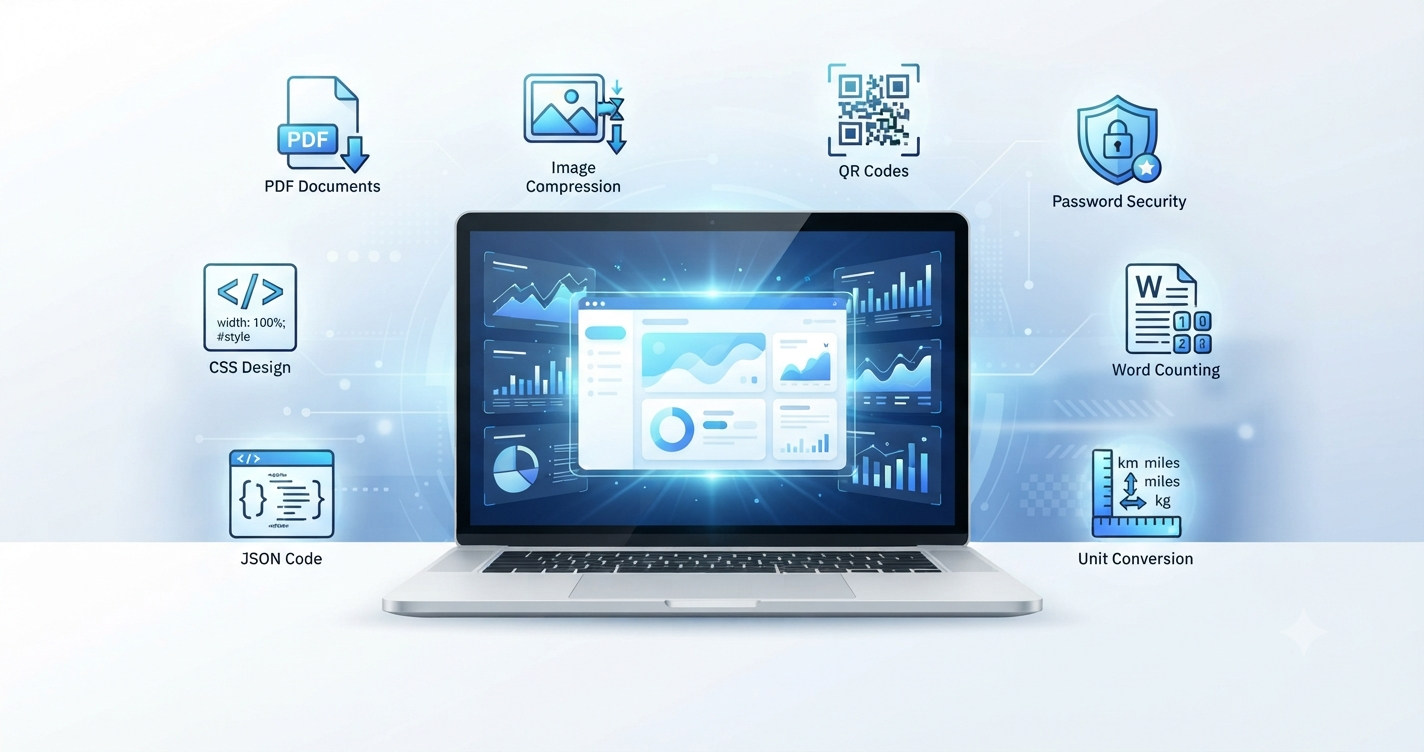
Updated for 2026: Online tools can help you complete everyday digital tasks without installing large applications, creating accounts for every service, or learning complicated software. Whether you need to reduce an image size, combine PDF files, generate a QR code, count words, convert measurements, or format JSON, the right browser-based utility can save valuable time.
ToolkitCenter provides a growing collection of free online tools for images, PDFs, text, security, web development, calculations, files, and everyday productivity. This guide introduces ten of the most useful tools available on the platform and explains how to use each one step by step.
The tools in this guide are suitable for students, freelancers, content creators, developers, website owners, office workers, educators, small businesses, and anyone looking for quick online solutions.
Quick Comparison of the Best Free Online Tools
| Online Tool | Best For | Main Result |
|---|---|---|
| Image Compressor | Websites, email and social media | Smaller JPG, PNG or WEBP images |
| PDF Merger | Reports, invoices and assignments | One combined PDF file |
| PDF to Word Converter | Editing text-based PDF documents | Editable DOCX document |
| YouTube Thumbnail Downloader | Video research and content planning | Available thumbnail images |
| QR Code Generator | Links, menus, events and marketing | Downloadable PNG QR code |
| Password Generator | Creating unique account passwords | Random customized passwords |
| Word Counter | Articles, essays and SEO writing | Detailed text statistics |
| Unit Converter | US, UK and metric conversions | Instant measurement results |
| JSON Formatter | Developers and API testing | Formatted or minified JSON |
| CSS Button Generator | Web design and frontend projects | Ready-to-use HTML and CSS |
1. Compress Images Without Installing Software
Large images can slow down websites, increase upload times, consume storage space, and make email attachments unnecessarily heavy. The Online Image Compressor helps reduce the file size of JPG, JPEG, PNG, and WEBP images directly in a web browser.
The tool lets you choose an output format, adjust image quality, and optionally limit the maximum width and height. Website owners can use WEBP output for modern web pages, while JPG may be suitable for photographs and PNG may be preferable when transparency is important.
How to use the Online Image Compressor
- Open the Online Image Compressor.
- Select a JPG, JPEG, PNG, or WEBP image from your device.
- Choose JPG, WEBP, PNG, or the original format as the output.
- Adjust the quality setting when using JPG or WEBP.
- Enter maximum width or height values if the image also needs resizing.
- Select Compress Image.
- Review the result and download the optimized image.
This tool is useful for blog images, ecommerce product photos, online portfolios, presentation graphics, email attachments, and social media uploads. Always compare the compressed image with the original before publishing it. Extremely low quality settings can create visible blur or compression artifacts.
Compress an image online with ToolkitCenter.
2. Merge Multiple PDF Files Into One Document
Invoices, reports, scanned pages, assignments, contracts, and application documents are often stored as separate PDF files. The PDF Merger Online combines multiple PDFs into one organized document.
How to merge PDF files
- Open the PDF Merger tool.
- Select at least two PDF files from your device.
- Add more files when necessary.
- Arrange the documents in the order in which they should appear.
- Remove any file that was added accidentally.
- Select Merge PDF Files.
- Download the combined PDF document.
A freelancer could combine a project proposal, timeline, pricing document, and portfolio into one client-ready file. A student could join several research sections before submitting an assignment. An office worker could combine monthly invoices into a single archive.
Password-protected, encrypted, corrupted, or highly complex PDFs may not process correctly. Keep the original files until the merged document has been opened and checked.
Combine PDF files with the free PDF Merger.
3. Convert a Text-Based PDF to an Editable Word Document
Editing a PDF can be difficult when the original Word document is unavailable. The PDF to Word Converter Online extracts readable text from supported PDF files and creates a real DOCX document.
The resulting file can be opened in Microsoft Word, Google Docs, LibreOffice, and other compatible word processors. This is useful for rewriting reports, updating old documents, reusing text, preparing assignments, and transferring information into a new document.
How to convert PDF to Word
- Open the PDF to Word Converter.
- Upload a text-based PDF file.
- Select all pages or enter a specific page range.
- Choose the preferred DOCX font size.
- Decide whether page breaks should be added between PDF pages.
- Select Convert to Word.
- Download and review the DOCX file.
This browser-based converter works best with PDFs that contain selectable text. Scanned pages and image-only PDFs usually require optical character recognition, commonly called OCR. Complex columns, forms, tables, embedded fonts, and images may not be reproduced exactly. Always compare the converted document with the source before relying on it for important work.
Convert a readable PDF into a Word document.
4. Download Available YouTube Thumbnail Images
A video thumbnail can be useful for content analysis, presentation references, design research, and planning a video campaign. The YouTube Thumbnail Downloader retrieves publicly available thumbnail versions associated with a YouTube video URL.
How to get a YouTube video thumbnail
- Copy the URL of the YouTube video.
- Open the YouTube Thumbnail Downloader.
- Paste the video URL into the input field.
- Select Get Thumbnails.
- Preview the available image sizes.
- Save the resolution that meets your needs.
Available sizes may include maximum resolution, standard definition, high quality, medium quality, and smaller default images. Not every video provides every size, and downloading an image does not automatically grant permission to republish it.
Use thumbnails for legitimate research, reference, analysis, or content you own. Respect YouTube’s rules, copyright law, and the rights of the original video creator before publishing or commercially reusing an image.
View the available thumbnails for a YouTube video.
5. Create a Custom QR Code Online
QR codes provide a convenient way to connect printed material with digital content. The Online QR Code Generator creates downloadable PNG QR codes from website links, plain text, contact details, Wi-Fi information, and other short content.
QR codes can be placed on restaurant menus, posters, product packaging, business cards, event invitations, classroom materials, property listings, and marketing brochures.
How to generate a QR code
- Open the QR Code Generator.
- Enter the URL, text, contact information, or other content.
- Select a QR color and background color.
- Choose the required PNG image size.
- Select Generate QR Code.
- Scan the preview with a phone before downloading it.
- Download the finished QR code as a PNG image.
Keep the content concise and maintain strong contrast between the QR pattern and its background. Dark patterns on a light background generally provide reliable readability. Before printing hundreds of copies, test the code on multiple devices, at the final print size, and under normal lighting conditions.
Create a custom QR code online.
6. Generate Strong and Unique Random Passwords
Reusing the same password across multiple websites creates unnecessary risk. If one service is compromised, attackers may try the exposed credentials on other accounts. The Random Password Generator creates customizable random passwords directly in the browser.
How to create a random password
- Open the Random Password Generator.
- Select the required password length.
- Choose how many passwords should be generated.
- Enable uppercase letters, lowercase letters, numbers, and symbols.
- Enable the option to avoid ambiguous characters when easier typing is important.
- Select Generate Password.
- Copy the result and save it in a trusted password manager.
Longer passwords that combine several character types are generally more resistant to guessing than short, predictable passwords. Important accounts should use a unique password and multi-factor authentication whenever the service supports it.
A password generator is only one part of account security. Never send important passwords through unprotected messages, never reuse them across services, and avoid storing them in an unsecured text document.
Generate a customized random password.
7. Count Words, Characters and Reading Time
Writers often need to meet specific limits for articles, essays, product descriptions, advertisements, application forms, social posts, or academic assignments. The Word Counter Online provides instant text statistics while you type or paste content.
The tool counts words, characters, characters without spaces, sentences, paragraphs, lines, and unique words. It also estimates reading time, speaking time, average word length, and average words per sentence.
How to check text length
- Open the Word Counter.
- Type or paste the text into the editor.
- Review the automatically updated statistics.
- Check sentence length and reading time when editing long content.
- Use Copy Stats when a summary is needed.
- Select Clear Text before analyzing a new document.
Bloggers can use the tool to check article length, students can review essay limits, and marketers can prepare product descriptions or campaign text. Counts may vary slightly between platforms because punctuation, spacing, language, hyphens, and formatting can be interpreted differently.
Analyze your text with the free Word Counter.
8. Convert US, UK and Metric Measurement Units
International shopping, travel, cooking, education, fitness, construction, and remote work often require conversions between different measurement systems. The Unit Converter Online supports common categories such as length, weight, temperature, area, volume, speed, time, and data size.
How to convert measurement units
- Open the Unit Converter.
- Select a category such as length, weight, or temperature.
- Enter the original value.
- Select the original unit.
- Select the target unit.
- Review or copy the converted result.
- Use Swap Units to reverse the conversion.
For example, a European traveler can convert miles into kilometers before a road trip in the United States. A US-based customer can convert kilograms into pounds when comparing an internationally listed product. Temperature conversion is also useful when comparing Fahrenheit and Celsius weather forecasts.
The calculator is designed for general reference and everyday tasks. Critical engineering, scientific, medical, legal, or regulated measurements should be checked against official standards and specialized professional tools.
Convert common measurement units instantly.
9. Format, Validate and Minify JSON
JSON is widely used in APIs, configuration files, web applications, mobile applications, and data exchange. A compact JSON response can be difficult to read when it appears on a single line. The JSON Formatter and Beautifier turns valid JSON into a structured and readable format.
How to format JSON online
- Open the JSON Formatter.
- Paste JSON text or upload a JSON file.
- Choose two spaces, four spaces, or tabs for indentation.
- Select Format JSON to create a readable structure.
- Select Validate JSON to check its syntax.
- Use Minify JSON when a compact version is required.
- Copy or download the result.
A compact input may look like this:
{"product":"Laptop","price":899,"available":true}After formatting, it becomes easier to inspect:
{
  "product": "Laptop",
  "price": 899,
  "available": true
}
The tool is useful for debugging API responses, reviewing configuration data, finding syntax problems, and preparing JSON examples for documentation. Invalid JSON must be corrected before it can be formatted successfully. Avoid pasting confidential API keys, passwords, private customer records, or other sensitive data into any tool unless its processing method is fully understood.
Format and validate JSON online.
10. Design a CSS Button With Live Preview
Buttons are essential elements on landing pages, forms, ecommerce stores, portfolios, dashboards, and marketing websites. The CSS Button Generator lets users visually create a button and obtain ready-to-use HTML and CSS code.
You can customize button text, background color, text color, hover colors, border radius, font size, padding, font weight, border style, shadow, and hover movement.
How to generate a CSS button
- Open the CSS Button Generator.
- Enter the text that should appear on the button.
- Choose background, text, hover, and border colors.
- Adjust radius, padding, font size, and font weight.
- Configure the border and shadow settings.
- Review the result in the live preview.
- Copy or download the generated HTML and CSS code.
The generated code can be used as a starting point for call-to-action buttons, contact links, purchase buttons, signup forms, navigation elements, and portfolio projects. After adding the code to a website, test it on desktop and mobile devices.
Make sure the text has sufficient contrast, the button remains readable at different sizes, and keyboard users can identify its focus state. A visually attractive button should also remain accessible and easy to understand.
Create a custom CSS button with live preview.
Tips for Getting Better Results From Online Tools
- Keep original files: Do not delete an important source file until the processed result has been checked.
- Review converted documents: PDF conversion may change tables, columns, fonts, images, or page breaks.
- Test QR codes: Scan the finished code with multiple devices before printing or publishing it.
- Check image quality: A smaller file is not useful when important details become unreadable.
- Use unique passwords: Never reuse the same password for email, banking, social media, and work accounts.
- Protect sensitive information: Do not enter confidential data into an online utility unless you understand how it is processed.
- Use supported formats: Corrupted, encrypted, unsupported, or extremely complex files may fail.
- Test generated code: Preview HTML and CSS on different browsers, devices, and screen sizes.
- Verify critical calculations: Professional measurements should be confirmed through official or specialist sources.
Frequently Asked Questions
Are the online tools on ToolkitCenter free?
The tools covered in this guide are presented as free online utilities. You can open the relevant tool page and use its available functions from a supported web browser.
Do I need to install additional software?
The tools are designed to work through a web browser, so separate desktop software is not required for the tasks described in this guide. Browser compatibility and device performance may affect complex or large files.
Can I use ToolkitCenter on a mobile device?
Many tools can be opened in a modern mobile browser. Simpler tasks such as generating QR codes, counting words, converting units, or creating passwords are well suited to mobile use. Large file-processing tasks may be more comfortable on a desktop computer.
Which tools are most useful for website owners?
The Image Compressor can help optimize website graphics, the JSON Formatter assists with structured data and API work, and the CSS Button Generator creates reusable button code. The QR Code Generator and Word Counter can also support marketing and content workflows.
Will PDF to Word preserve every part of the original layout?
Not always. Text-based PDFs generally produce better results, while scanned pages, unusual fonts, tables, columns, forms, and complex layouts may require OCR or professional document-conversion software.
Is a randomly generated password enough to secure an account?
A strong and unique password is important, but it should be combined with a trusted password manager, multi-factor authentication, secure recovery settings, and protection against phishing attempts.
Choose the Right Tool for Your Next Task
The best online tool is the one that solves a specific problem quickly and clearly. Image optimization, PDF management, QR code creation, writing analysis, password generation, measurement conversion, JSON formatting, and CSS design no longer need to begin with a complicated software installation.
Start with the utility that matches your current task, review the result carefully, and keep the original file when working with important content. You can explore more image, PDF, text, developer, security, and productivity utilities from the ToolkitCenter free online tools homepage.

Comments (0)
Leave a Comment